
The short answer
When a stereo mix export sounds different, reimport the exact WAV and compare it with the session through the same monitoring path at a similar level. Bypass extra processing on the reimport. If the difference remains, check the rendered output, start and end points, export options and real-time versus offline bounce mode.
Keep these in mind
- Reimport the exact file and avoid processing the bounce twice.
- Follow the missing or altered sound back through the selected output and render range.
- Change one export setting per test and keep the matching file identifiable.
Does the difference follow the file or the player?
Start with the exact file that sounds wrong. Note whether the difference affects the whole track or a particular moment, then listen with the same headphones or speakers and output device. Turn off optional player EQ or volume leveling during the comparison if you can. If the change only happens outside the DAW, investigate the player or device before making a new export.
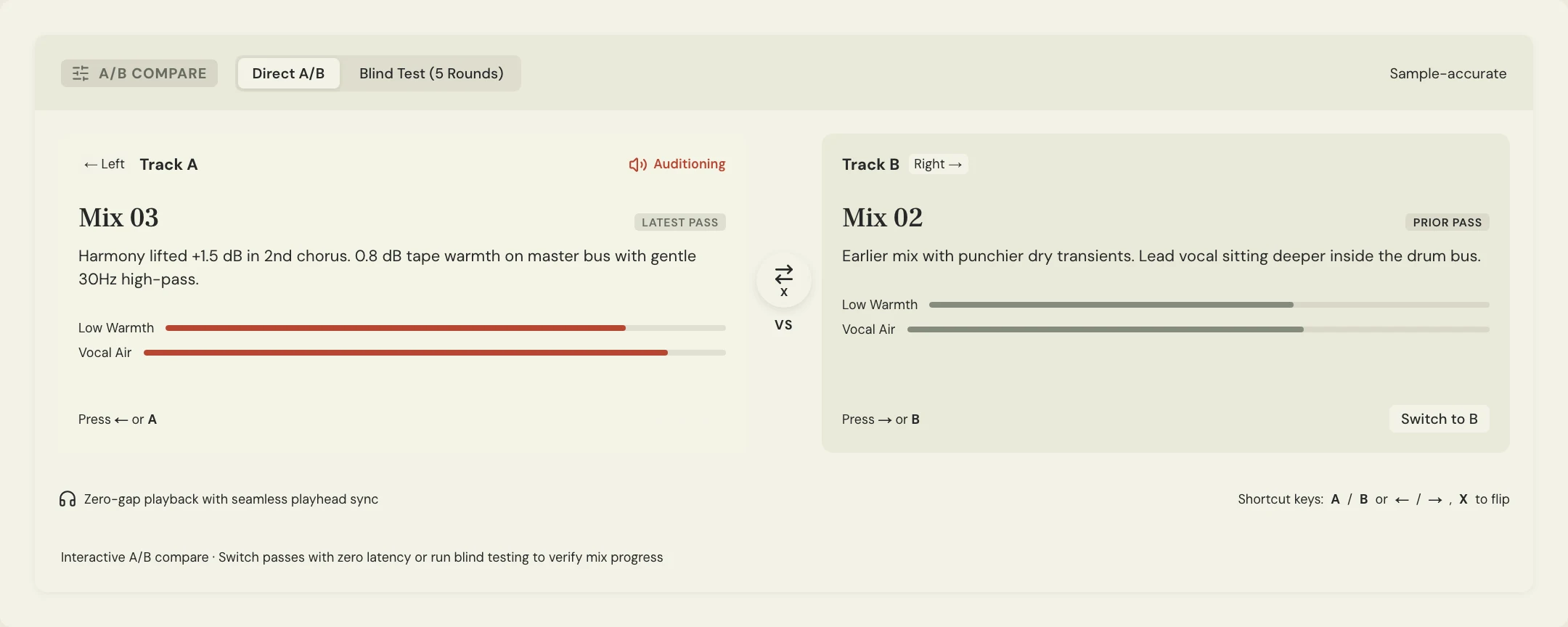
Bring the exported WAV into a clean comparison session. Line it up with the original start and check that import settings have not added time stretching, fades or gain. If you compare inside the original session, route the reimport around the mix-bus processing already printed into the WAV. Let both signals share the same intended monitoring path, switch between them one at a time and match playback level for the listening check.
Which part of the render can change the sound?
Trace a missing part or effect from its source to the output you chose to render. Check the active playback state, mutes, solo and return routing. For example, Ableton Live’s export dialog lets you select the signal to render. Its Main output includes the returns routed there. A different output or an individual track can capture a different signal from the one you were monitoring.
Check the render range if only the first or last moments differ. Verify the actual start and end markers, including any wanted silence and the full fade or effect tail. Apple’s Logic Pro guide points out that Cycle mode can set the bounce range and explains its audio tail option. Check stereo versus mono and export normalization too. Those settings can change image or level even if the underlying mix is unchanged.
When should you test a real-time bounce?
Consider a real-time bounce if the missing sound comes from an external instrument or effect, or if the plug-in documentation requires it. Logic Pro documents real-time bounce for external MIDI sound sources routed into its mixer and describes how Automatic mode can handle plug-ins that require real time. Follow the instructions for the DAW and devices actually on the session.
Constructed example: in the fictional Soft Signals song Lantern, the engineer hears an external synth in the session but its sustained note at 2:06 is missing from the stereo export. The main output and export range are correct. The engineer tries a real-time bounce with the synth return routed to that same output. On reimport the note is present. The team compares the previous and new exports from the same start, then saves the new file with the bounce mode in the label or notes.
| What changed? | First comparison | What to check next |
|---|---|---|
| Whole file sounds louder | Level-match through the same output | Player volume leveling or export normalization |
| One part or effect is missing | Trace the source to the rendered output | Mute, solo, send, return and external source routing |
| Start, fade or tail differs | Compare the last and first audible events | Render start, end, loop range and tail settings |
| Only the external sound is missing offline | Use the same output and range in real time | Confirm the return path or record the external part to audio |
How do you confirm and share the corrected export?
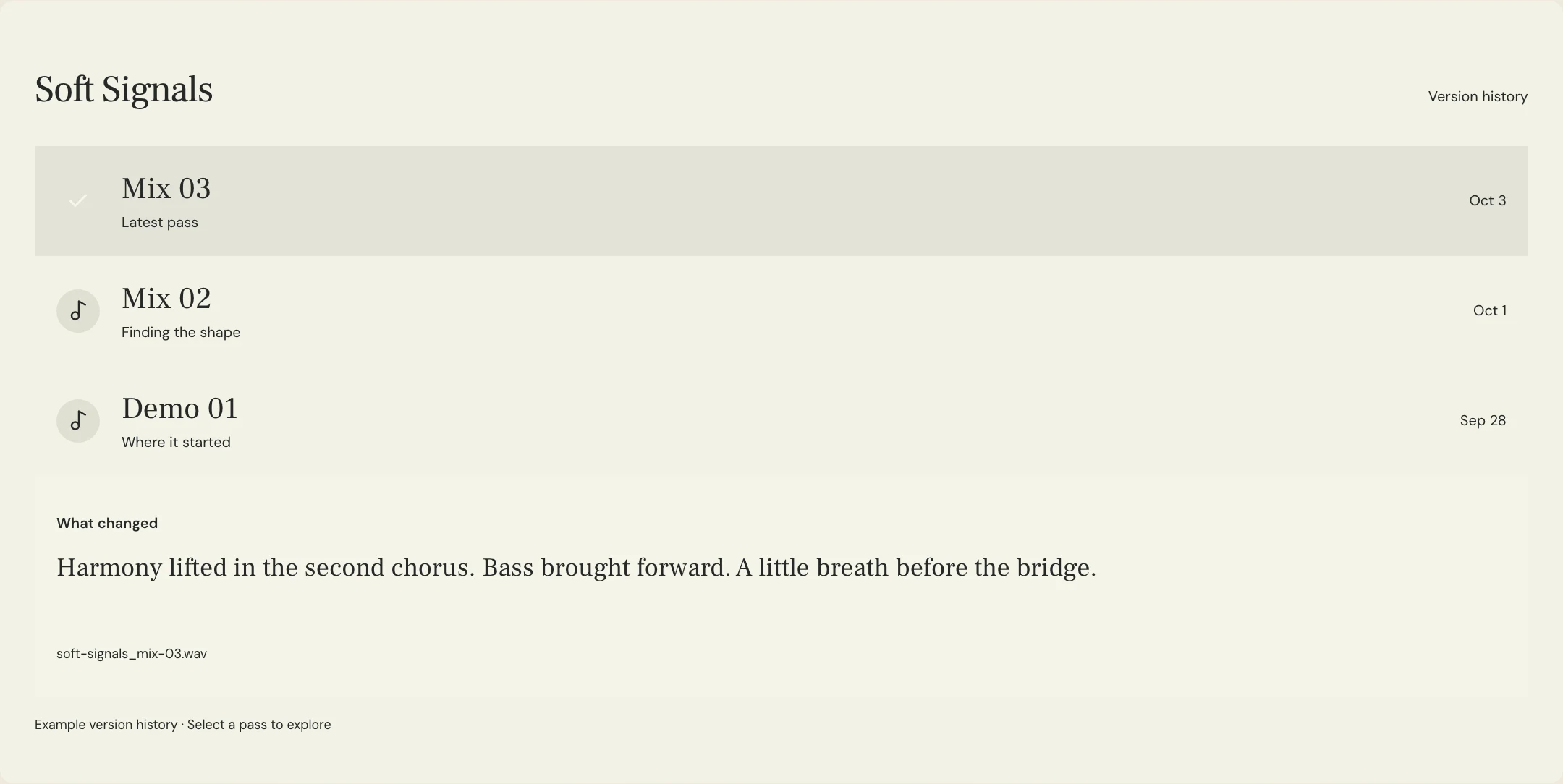
Reimport the new WAV and verify the spot that failed, then play the export from start to finish. Keep the comparison files identified until someone has confirmed the replacement. A basic log can include the previous and new filenames, exact location, selected output, render mode and which setting changed. If you hear crackle instead of a missing part, use the clipping check to trace it separately.
Upload only the files that need review, name each MixPass pass clearly and put the changed setting in its version notes. Point listeners to the original symptom on the relevant pass. A fair comparison between exported files can confirm a change your collaborators can hear. Keep the actual render and routing changes in the DAW and use the approval checklist to record the exact file you will deliver.
A few more things
Common questions
Why does my bounce sound different when I drag it back in?
Check whether it passes through the original bus chain again or whether import settings added stretching, gain or fades. Reimport into a clean comparison path.
Should I switch to real time for every export?
Use the bounce mode that fits the source and software. Test real time when an external input or a plug-in that needs it appears to be missing.
Why is the tail shorter in the bounce?
Check the end of the selected range, cycle settings and the DAW’s audio-tail controls. Leave space beyond the last region if the decay belongs in the file.
Do I need to change sample rate and bit depth while troubleshooting?
Keep format settings fixed while isolating routing, range or playback changes. Recheck the approved delivery format when you have a matching bounce.
Further reading
Technical background from the original sources referenced in this guide.
Your next pass
Give the song a shared home.
Keep the versions, lyrics, feedback, and people together in MixPass.
Building an upcoming single or EP? Apply for the Founding Testers Program for 3 months of Pro free in exchange for feedback (50 early seats).