
The short answer
To compare masters for Spotify, measure integrated loudness and true peak on the delivered files. Turn the louder file down in a listening session, then compare the same verse, chorus and transition. After release, check a supported Spotify app with the setting recorded, once in album order and once in a playlist.
Keep these in mind
- Use whole-song LUFS to estimate a starting gain difference.
- Compare the same passages with temporary gain and keep the delivered files intact.
- Log Spotify’s app, normalization setting and playback context when you check the release.
What does Spotify change during playback?
Spotify measures loudness and applies gain during playback on supported players. Its artist documentation lists Normal at −14 LUFS and describes peak headroom limiting how far quieter tracks can be turned up. It says the web player and some third-party devices do not use normalization. For a listening check, write down the app, device and setting you used.
Playback gain can reduce the level difference between masters. The kick attack, vocal balance and verse-to-chorus lift created by mastering still matter at the resulting level. Spotify also publishes true-peak guidance for delivery and describes a playback limiter in its Loud setting. Choose the master for its sound, then check the current delivery guidance for the file you send.
How do you level-match two masters before release?
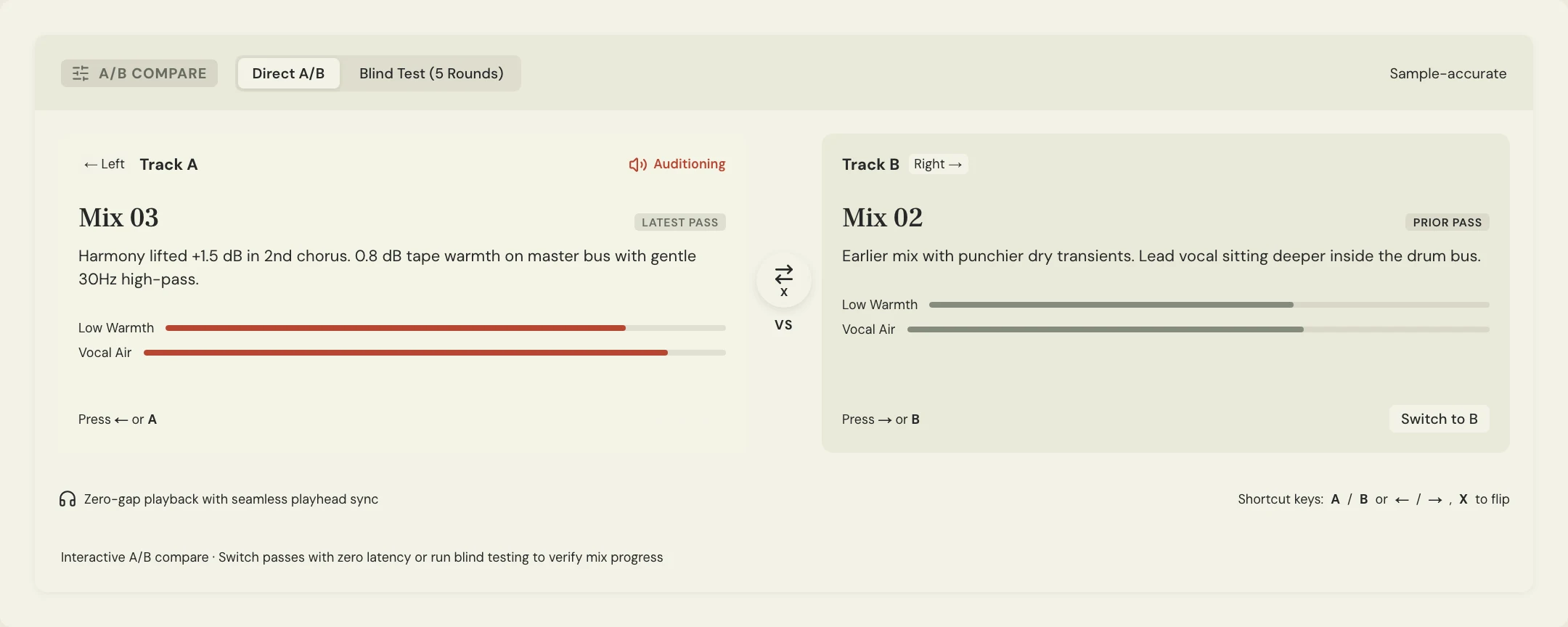
Load the exact WAV exports on two tracks with the same start time. Measure integrated LUFS over each full file and note its true peak. Use the integrated difference as a starting point for temporary gain on the louder track. Leave your monitor knob fixed and switch at the same moment in the song. Fine-tune for perceived level if the two passages still feel uneven.
Constructed example: Soft Signals measures Master 01 at −10 LUFS and Master 02 at −13 LUFS. The team starts by turning Master 01 down 3 dB in the listening session. At the second chorus, the vocal comes through on both passes, but the front edge of the kick is easier to hear on Master 02. They replay the verse into the chorus and check whether that attack suits the song before approving Master 02. The gain adjustment stays in the listening session.
What should you listen for after matching levels?
Compare one quiet phrase, the loudest chorus and the transition between them. Write an observation you could find again, such as a cymbal masking a consonant when the chorus opens. If one master wins only before you turn it down, repeat the comparison at similar level and describe what changes in the arrangement or the way it hits.
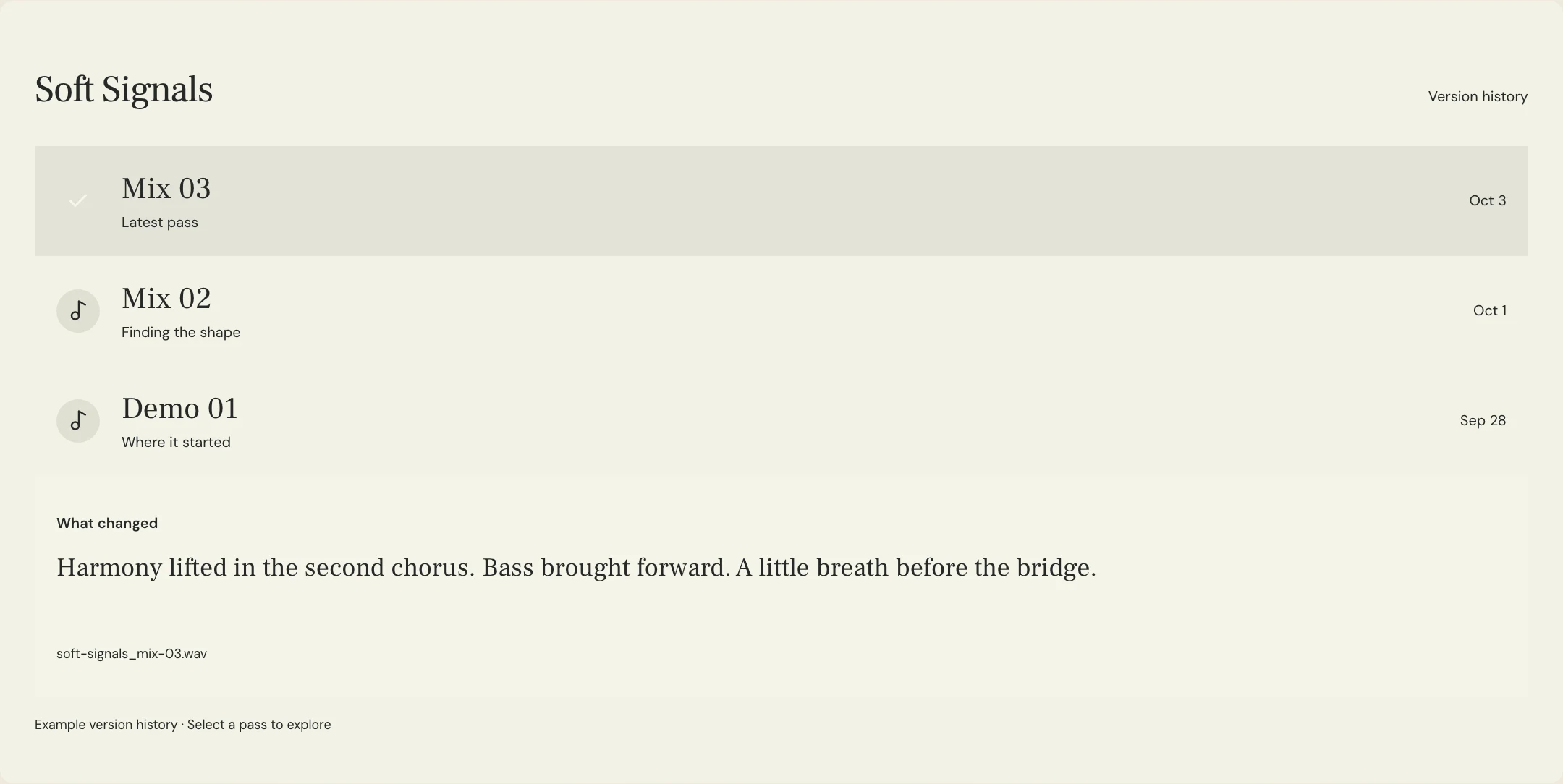
MixPass Audio checks can show integrated loudness and true peak for eligible mix and master passes. Pair those values with the exact labels in version history. Use the meter readings as inputs for the listening test. If you need to decide on delivery, bring the result into the wider master review and document which file was approved.
| Pass through the test | Keep fixed | Record |
|---|---|---|
| Original files | Same passage and monitor setting | Master labels, integrated LUFS and true peak |
| Matched comparison | Same cue points; temporary gain on the louder master | Gain offset, preferred passage and audible reason |
| Spotify in album order | Same device, app and Normal setting | Level relationship to the previous and next tracks |
| Spotify in a playlist | Same app and setting | Where your released track sits beside nearby songs |
Why check the release in both album and playlist playback?
Spotify says album playback can apply one gain adjustment across an album, preserving intentional level differences between its tracks. Shuffle and playlists containing tracks from different albums can use track-level adjustment. Listen through a sequence transition first, then play the same released track in a playlist. Note whether a quiet interlude still leads into the next song the way you planned.
For a single, start with the playlist check. If something feels unexpectedly quiet, verify the app setting and replay the original export locally. A difference that only appears in one playback context is worth recording with the device and setting before requesting a revision. If the issue follows the file across contexts, send the engineer the time, exact master and what you heard.
A few more things
Common questions
Is −14 LUFS the only way to master for Spotify?
Spotify publishes it as its Normal playback reference and recommends it in its mastering guidance. Choose a master by listening and check the current delivery and true-peak guidance for that file.
Should I match true peak when comparing masters?
Start with integrated loudness and then listen. True peak helps assess headroom and tells you little about how loud a whole track sounds.
Can the Spotify web player verify normalization?
Spotify says its web player does not use loudness normalization. Use a supported app and note the setting for the release check.
Should I export the level-matched listening version?
Keep gain changes in the comparison session. Deliver the approved master and archive its exact filename and pass label.
Further reading
Technical background from the original sources referenced in this guide.
Your next pass
Give the song a shared home.
Keep the versions, lyrics, feedback, and people together in MixPass.
Building an upcoming single or EP? Apply for the Founding Testers Program for 3 months of Pro free in exchange for feedback (50 early seats).